
HP Printer Offline on Windows 11: The Complete Checklist
Your HP printer has power, the Wi-Fi light looks fine — but Windows 11 insists it is “Offline” and nothing prints. This is one of the most common printer problems there is, and it is also one of the most fixable: in most cases the printer itself is perfectly healthy, and the connection between Windows and the printer is what broke.
Work through the steps below in order. They run from the 10-second checks to the deeper Windows fixes, exactly the sequence used at a real helpdesk. Most readers are printing again by Step 4.
✔ The short answer
- “Offline” usually means Windows lost the connection — not that the printer is broken.
- The four fixes that solve most cases: restart everything in the right order, turn off “Use Printer Offline”, clear the stuck print queue, and change the printer port from WSD to the printer’s IP address.
- If the printer shows offline on every device, the problem is the printer/network. If only one PC says offline, the problem is that PC.
First, a 30-second diagnosis
Before changing settings, find out where the problem lives:
- Try printing from your phone (HP Smart app or AirPrint/Mopria). If the phone prints, the printer and Wi-Fi are fine — the fault is inside Windows. Go to Step 3.
- Look at the printer’s own screen or lights. A flashing Wi-Fi light, an error code, or “not connected” on the display means the printer itself dropped off the network. Start at Step 1.
- Did anything change recently? A router restart, a new Wi-Fi password, a Windows update or a power cut are the classic triggers.
Step 1 — Check the printer’s connection properly
On the printer’s control panel, open the wireless menu (usually under the Wi-Fi or network icon) and confirm two things: the printer is connected to your network name (SSID), and it has an IP address (something like 192.168.1.50). If it shows “Not connected”, reconnect it to Wi-Fi from the panel, or use the Wi-Fi setup mode plus the HP Smart app.
Also check the simple things: paper loaded, no paper jam, ink or toner present, and no orange warning light. An HP printer that is out of paper or has a jam can report itself offline to Windows.
Step 2 — Restart everything, in the right order
The order matters because each device needs the previous one fully awake before it connects:
- Turn the printer off and unplug it for 30 seconds.
- Restart your router (unplug for 30 seconds, then wait until its internet light is stable).
- Plug the printer back in, turn it on, and wait until it shows “Ready” and is connected to Wi-Fi.
- Restart the PC last.
Now try printing a test page. This alone fixes a large share of “offline” cases after power cuts and router restarts.
Step 3 — Turn off “Use Printer Offline” and set the printer as default
This one setting quietly causes more offline errors than any hardware fault:
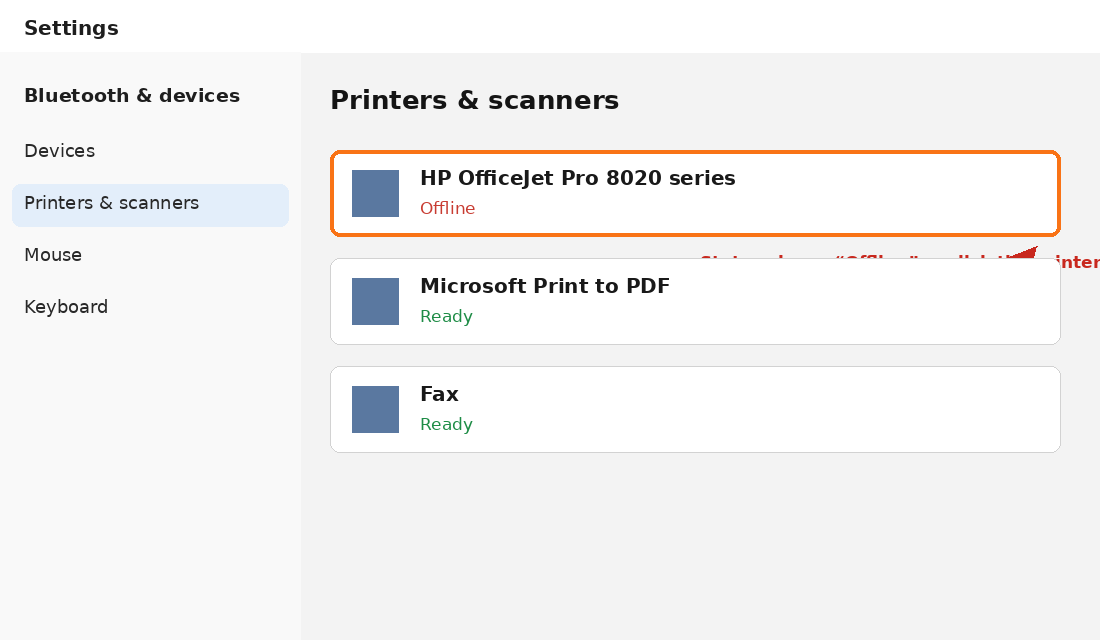
- Open Settings → Bluetooth & devices → Printers & scanners and click your HP printer.
- Click Open print queue.
- In the queue window, open the Printer menu. If “Use Printer Offline” is ticked, click it to untick it.
- Back in Settings, turn on “Let Windows manage my default printer” off, then open your printer and choose Set as default yourself — this stops Windows switching the default to another (often virtual) printer.
Step 4 — Clear the stuck print queue
One corrupt document at the top of the queue can block everything behind it and make the printer look dead:
- In the same print queue window, look for a job stuck on “Error” or “Deleting”.
- Choose Printer → Cancel All Documents.
- If a job refuses to clear, restart the Print Spooler service (Step 7) and try again.
Step 5 — Run HP Print and Scan Doctor
HP’s free Print and Scan Doctor tool (from HP’s official support site) automatically checks the connection, the driver and the spooler, and fixes several offline causes itself. Download it only from hp.com, run it, select your printer, and let it test. If it reports a driver problem, go straight to Step 6’s reinstall.
Step 6 — Fix the real culprit: the WSD port
If the printer keeps coming and going, this is very likely your problem. Windows often installs HP printers on a WSD port, which finds the printer by discovery instead of a fixed address — and discovery breaks constantly. Switching to the printer’s fixed IP address is the permanent fix:
- Find the printer’s IP address on its control panel (wireless/network menu) — e.g. 192.168.1.50.
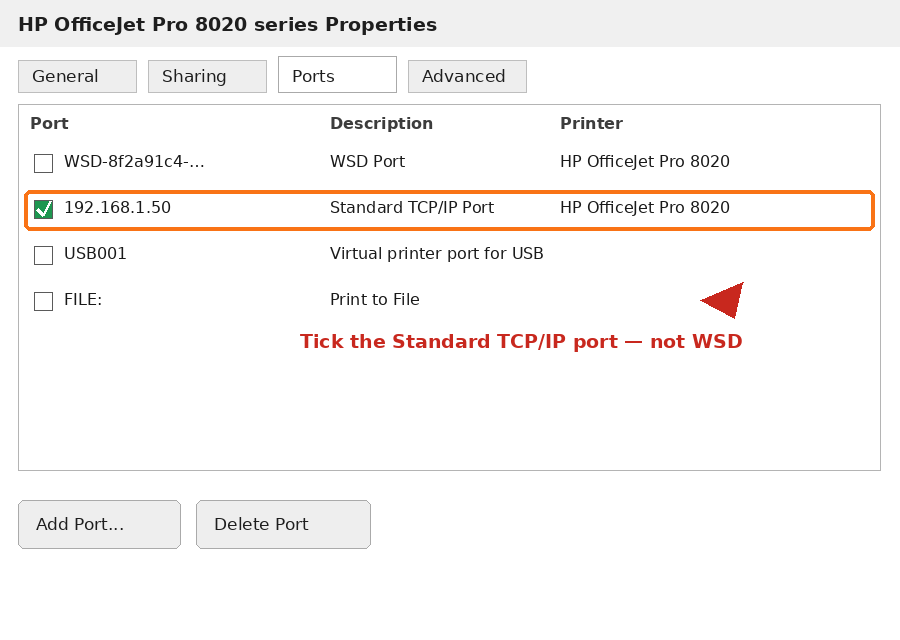
- On the PC: Settings → Bluetooth & devices → Printers & scanners → your printer → Printer properties → Ports tab.
- Click Add Port → Standard TCP/IP Port → New Port, enter the IP address, and finish the wizard.
- Make sure the new TCP/IP port is the ticked one, click Apply, and print a test page.
Pro tip from the helpdesk: reserve that IP address for the printer in your router’s settings (DHCP reservation) so it never changes — otherwise the “offline” problem can return the day the router hands the printer a new address.
Step 7 — Restart the Print Spooler service
Windows prints through a background service called the Print Spooler. When it hangs, every printer can show offline:
- Press Windows + R, type
services.msc, press Enter. - Find Print Spooler, right-click it and choose Restart.
- Double-click it and confirm Startup type is Automatic.
Step 8 — Reinstall the driver the clean way
If the driver itself is damaged (common after a big Windows update), a clean reinstall beats layering new drivers over old ones:
- Settings → Bluetooth & devices → Printers & scanners → your HP printer → Remove.
- Restart the PC.
- Install HP Smart from the Microsoft Store, or download the full driver for your exact model from HP’s support site.
- Add the printer again — and when Windows offers the WSD option during setup, prefer adding it by its IP address (Step 6) instead.
Step 9 — Update the printer’s firmware
Outdated firmware causes known offline bugs on several DeskJet, OfficeJet and LaserJet lines. In the HP Smart app, open your printer → Advanced Settings (this opens the printer’s web page) → Tools/Settings → Printer Updates, and install any available update. Keep the printer on and connected until it finishes.
When it is NOT a Windows problem
Call it hardware/network — and save yourself more hours — if:
- No device in the house can print, and the printer keeps dropping off Wi-Fi even next to the router. The printer’s wireless board may be failing.
- The printer shows an error code on its own display (note it down — each HP code has a specific meaning and fix).
- The offline problem follows the printer to a different network entirely.
HP printer offline: quick recap
- Check the printer is truly on your Wi-Fi, with an IP address.
- Restart printer → router → PC, in that order.
- Untick “Use Printer Offline”; set the HP as default.
- Cancel all documents in the queue.
- Run HP Print and Scan Doctor.
- Replace the WSD port with a Standard TCP/IP port using the printer’s IP (the permanent fix).
- Restart the Print Spooler service.
- Clean-reinstall the driver; update the firmware.
Nine times out of ten, your printer was never broken — Windows had simply lost its address. Fix the port, and it usually stays fixed.
Frequently asked questions
Why does my HP printer keep going offline again and again?
Recurring offline errors are almost always the WSD port problem (Step 6) or the printer’s IP address changing. Move the printer to a Standard TCP/IP port and reserve its IP address in your router — that combination ends most repeat cases.
Why is my HP printer offline but connected to Wi-Fi?
The printer can be happily on Wi-Fi while Windows still can’t reach it — because “Use Printer Offline” is switched on, the spooler is stuck, or Windows is pointing at the printer’s old address. Steps 3, 6 and 7 cover these.
Does this work for HP LaserJet as well as DeskJet and OfficeJet?
Yes. The Windows-side steps are identical for LaserJet, DeskJet, OfficeJet and ENVY models; only the control-panel menus on the printer itself differ slightly.
My printer shows offline only after Windows updates. Why?
Feature updates sometimes replace the HP driver or reset the port. Re-check the Ports tab after an update, and reinstall the full HP driver for your model if the problem appeared right after one.
Written by Md. Mamun Or Rashid, IT Support Specialist — from real helpdesk practice. FixItDevice is an independent site and is not affiliated with HP.